Complete IPTV Setup Guide
Follow the TVCan installation guide to get your IPTV service ready on Fire TV Stick, Android TV, Smart TV, Roku, iPhone, Android, Windows, Mac, MAG Box, Formuler and BuzzTV.
 Fire TV Stick
Amazon Fire TV
Fire TV Stick
Amazon Fire TV
 Android TV
Google TV / Box
Android TV
Google TV / Box
 Smart TV
Samsung / LG
Smart TV
Samsung / LG
 Roku
Roku Devices
Roku
Roku Devices
 iPhone / iPad
Apple Devices
iPhone / iPad
Apple Devices
 Android Phone
Mobile / Tablet
Android Phone
Mobile / Tablet
 Windows / Mac
Computer
Windows / Mac
Computer
 MAG Box
Portal Setup
MAG Box
Portal Setup
 Formuler
MYTVOnline
Formuler
MYTVOnline
 BuzzTV
 Player
BuzzTV
BuzzTV Player
How to Set Up TVCan on Fire TV Stick
Follow these simple steps to prepare your Amazon Fire TV Stick and install a compatible IPTV player for your TVCan service.
Open the Amazon App Store
From your Fire TV home screen, open the App Store and search for Downloader.
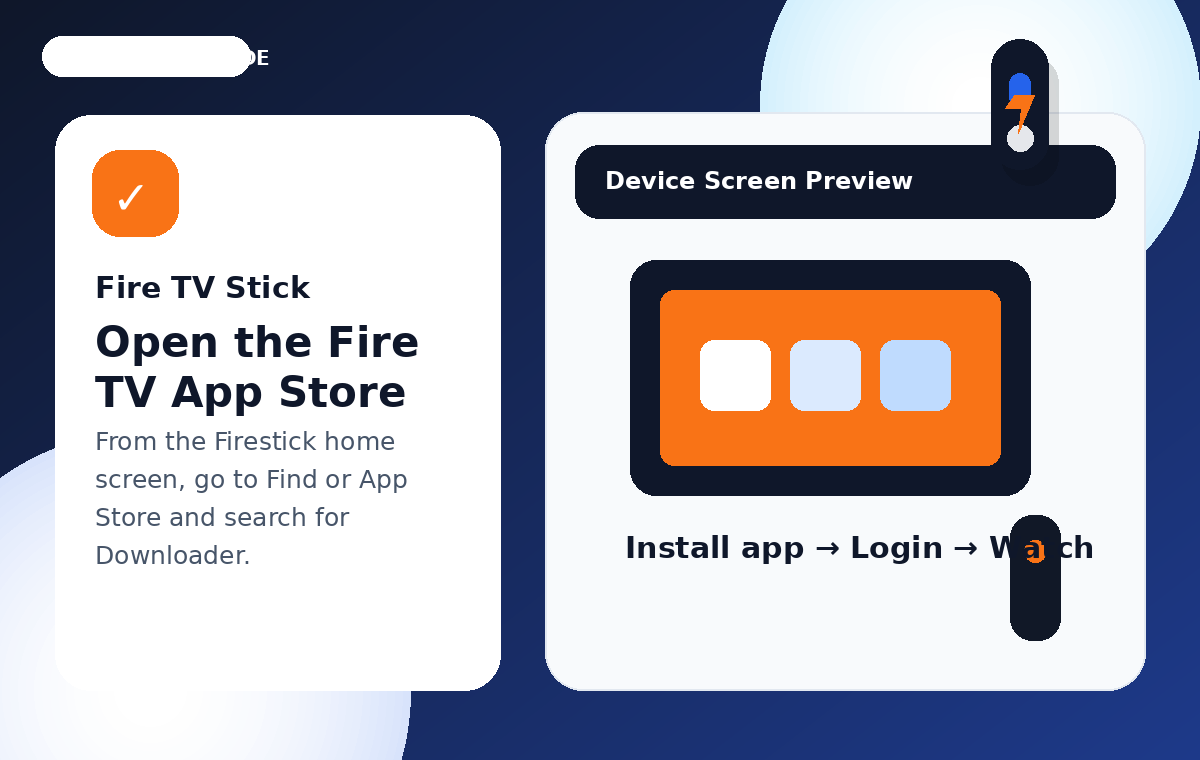
Install Downloader
Select the Downloader application and install it on your Fire TV device.
Enable Installation Permissions
Open Fire TV settings and allow Downloader to install applications when required by your device.
Install Your IPTV Player
Use Downloader to install the IPTV player recommended for your TVCan subscription.
Connect Your TVCan Account
Open the IPTV player and enter the username, password and server information supplied with your TVCan activation.
How to Set Up TVCan on Android TV
Configure TVCan on Android TV, Google TV, NVIDIA Shield, Xiaomi TV boxes and other compatible Android devices.
Open Google Play Store
Open Google Play Store on your Android TV and search for a compatible IPTV player.
Install an IPTV Player
Choose a compatible IPTV application and install it on your Android TV device.
Select Your Login Method
Choose the login option supported by your IPTV application, such as Xtream Codes or playlist login.
Enter Your TVCan Credentials
Enter the account information provided after your TVCan activation and double-check every field.
Load Your TVCan Content
Allow the application a few moments to load your available channels, movies, series and TV guide.
How to Set Up TVCan on Smart TV
Install and configure a compatible IPTV application on Samsung, LG and other supported Smart TV platforms.
Open Your TV App Store
Open the application store on your Samsung, LG or compatible Smart TV.
Find a Compatible IPTV App
Search for an IPTV player supported by your television model and install the application.
Launch the Application
Open the IPTV application and select the login or playlist option available on your device.
Check Device Information
If the application requires a device ID or MAC address, follow the app instructions to locate it.
Connect Your TVCan Service
Enter the activation details provided by TVCan and allow the application to synchronize your content.
TVCan Roku Setup Guide
Roku IPTV compatibility varies by device and available applications. Follow the steps below to check your setup.
Open the Roku Channel Store
Open the Channel Store and check for an IPTV application compatible with your Roku model.
Install a Compatible Application
Install an IPTV application supported by your Roku device and region.
Connect Your Account
Follow the application instructions to enter your account, playlist or server information.
Test Your Connection
Open available live content and confirm that playback is working correctly.
How to Set Up TVCan on iPhone & iPad
Watch your TVCan service on compatible iPhone and iPad IPTV applications available through the App Store.
Open the App Store
Search the App Store for a compatible IPTV player.
Install an IPTV Player
Download a compatible player and open it after installation.
Select the Login Option
Choose the login method supported by your IPTV application.
Enter Your TVCan Details
Enter your TVCan username, password and server information exactly as supplied.
Start Streaming
Once your content has synchronized, select a channel or program to test playback.
How to Set Up TVCan on Android Phone
Configure TVCan on compatible Android smartphones and tablets using an IPTV player from Google Play.
Open Google Play
Open Google Play Store and search for a compatible IPTV player.
Install Your IPTV Player
Download a supported application and launch it after installation.
Create a New Profile
Add a profile and select the login method supported by your IPTV application.
Add Your TVCan Credentials
Enter the account information supplied after your TVCan subscription or activation.
Load Your Content
Give the application a moment to synchronize channels, movies, series and guide information.
How to Watch TVCan on Windows & Mac
Use a compatible IPTV player to access your TVCan service from a Windows PC, laptop or Mac computer.
Install a Compatible Player
Install a compatible IPTV application or media player on your computer.
Open the Player
Launch the application and select the connection method supported by your player.
Enter Your TVCan Information
Add the server information, username and password provided with your TVCan service.
Save Your Connection
Save your profile and allow the application to synchronize the available content.
Start Watching
Open your available content and test playback on your Windows or Mac computer.
How to Set Up TVCan on MAG Box
Configure a compatible MAG device using the device information and portal details supplied for your service.
Locate Your Device Information
Open the device information section and locate the MAC address displayed by your MAG box.
Provide the Required Information
If your TVCan setup requires device activation, provide the requested device information through the support process.
Enter the Portal Information
Open the portal settings and enter the portal information supplied with your TVCan activation.
Restart the Device
Restart the MAG box after saving the configuration and allow the service to initialize.
Check Your Channels
Open the available TV content and confirm that playback is working correctly.
How to Set Up TVCan on Formuler
Configure your TVCan service on Formuler devices using MYTVOnline or another supported application.
Open MYTVOnline
Launch the MYTVOnline application from your Formuler device home screen.
Add a New Connection
Select the option to add a portal or playlist based on your Formuler model.
Enter TVCan Server Details
Enter the server or portal information supplied with your TVCan activation.
Connect Your Account
Save the connection and allow Formuler to synchronize your available content.
Refresh the TV Guide
Allow the application time to update the guide and organize your available categories.
How to Set Up TVCan on BuzzTV
Connect your TVCan service to a compatible BuzzTV device using the built-in IPTV application.
Open the BuzzTV Application
Launch the IPTV application from your BuzzTV device.
Add a New Server
Select the option to add a new server or portal connection.
Enter Your TVCan Details
Enter the server information and account credentials supplied with your TVCan service.
Save and Refresh
Save your connection and refresh the application so your available content can synchronize.
Start Watching
Open your available live content and test playback to complete the setup.
Simple IPTV Setup Across Your Favorite Devices
TVCan makes it easy to get started on popular streaming platforms. Follow our step-by-step installation instructions for Fire TV Stick, Android TV, Smart TV, iPhone, Android, Windows, Mac, Formuler, BuzzTV and other compatible devices.
What You Need Before Setup
Before starting, make sure your device is connected to the internet and that you have your TVCan activation information available. Depending on your device and IPTV application, you may need account credentials, a playlist or server information.
TVCan IPTV Installation FAQ
Which devices can I use with TVCan?
TVCan can be configured on many popular streaming platforms, including Fire TV Stick, Android TV, compatible Smart TVs, iPhone, iPad, Android devices, Windows, Mac, Formuler and BuzzTV.
Can I use TVCan on a Smart TV?
Yes. Compatible Samsung, LG and other Smart TVs may support IPTV applications that can be configured with your TVCan service. App availability depends on your television model and region.
What information do I need for IPTV setup?
The information required depends on the IPTV application and device. Your TVCan activation instructions will provide the information needed to connect your service.
Why is my IPTV content not loading?
First check your internet connection and confirm that your TVCan login information has been entered correctly. You can also restart the IPTV application or device and try again.